
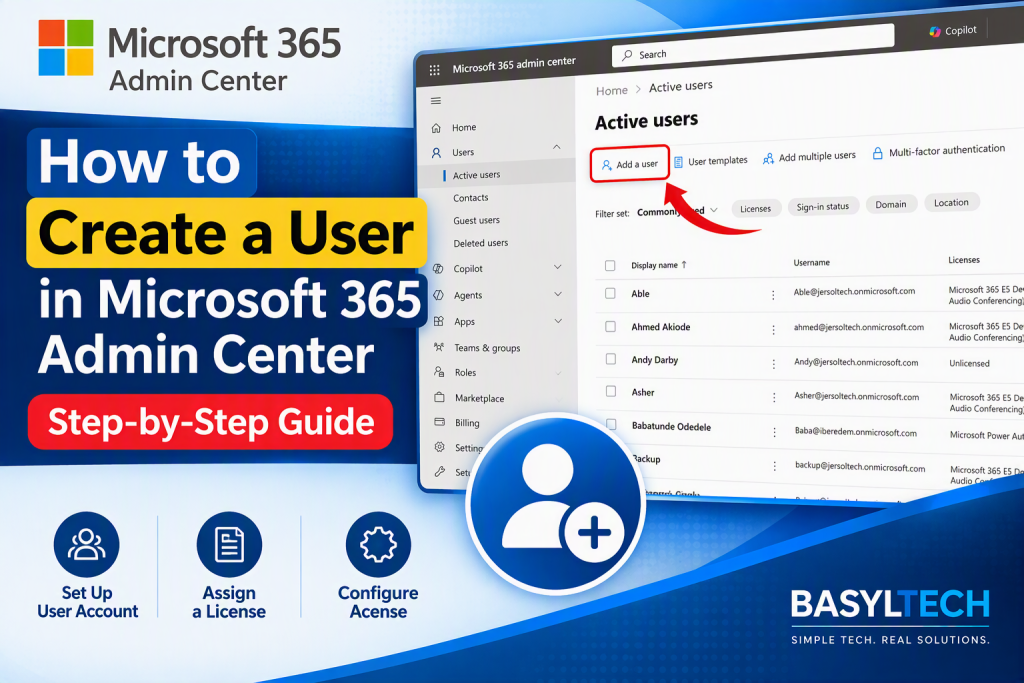
How to Create a User in Microsoft 365 Admin Center: Step-by-Step Guide
How to Create a User in Microsoft 365 Admin Center: Step-by-Step Guide Every person in your organization needs an account before they can sign in and use Microsoft 365 services. Creating a user account through the Microsoft 365 Admin Center allows you to set up the person’s sign-in details, assign a product license, manage available applications, and configure optional administrator permissions. In this guide, I’ll show you how to create a user in the Microsoft 365 Admin Center step by step. Important: You need an appropriate administrative role, such as User Administrator or License Administrator, to add users and assign licenses. What You Need Before Creating the User Before you begin, make sure you have the following information: The user’s first and last name The username the person will use to sign in The domain you want to use for the account The user’s location The Microsoft 365 license the user requires The applications and services the user needs Any administrator role the user may require You should also confirm that an appropriate product license is available. Although you can create an account without an available license, the user may not be able to access the Microsoft 365 applications and services required for their work until a license is assigned. Step 1: Sign In to the Microsoft 365 Admin Center Open the Microsoft 365 Admin Center and sign in with an administrator account that has permission to create users. The options displayed in the Admin Center may differ slightly depending on whether you’re using Simplified view or Dashboard view, but the user-creation process remains similar Step 2: Select Add User The location of the Add user option depends on the Admin Center view you’re using. In Simplified View Select Add user at the top of the Microsoft 365 Admin Center home page. You may also find the option under the Users section on the home page In Dashboard View Follow these steps: Select Users from the navigation menu. Select Active users. Select Add a user. Both views take you into the account-creation process. Step 3: Enter the User’s Basic Information On the Set up the basics page, enter the user’s account information. The available fields include: First name Last name Display name Username Domain The display name is the name that other people in the organization will see when interacting with the user across Microsoft 365. The username and selected domain form the user’s sign-in address. For example, if the username is john and the selected domain is yourcompany.com, the user’s sign-in address will be: john@yourcompany.com Review the information carefully, especially the username and domain, before proceeding. When the information is correct, select Next. Step 4: Configure the User’s Password During account creation, you can allow Microsoft 365 to generate a password automatically or create the initial password yourself. By default, the option to generate a password automatically is selected. You can deselect it if you want to create a strong initial password manually. [learn.microsoft.com] You can also require the user to change the password when signing in for the first time. Requiring a password change helps ensure that the user replaces the temporary password with one known only to the account owner. Step 5: Assign a Product License On the product-license page, select the user’s location and assign the appropriate Microsoft 365 license. The user’s location is important because it helps determine which services can be made available to the account. To assign a license: Select the user’s location. Locate the appropriate product license. Turn on the license for the user. Confirm that a license is available. A product license gives the user access to the services included in your organization’s subscription. You can assign a license while creating the account, or create the user first and assign a license later. [learn.microsoft.com] If no licenses are available, you can still create the account and purchase or assign an appropriate license afterward Step 6: Choose the Apps and Services the User Can Access A Microsoft 365 product license may include several applications and services. Depending on the subscription, these may include services such as: Exchange Online Microsoft Teams OneDrive SharePoint Microsoft 365 desktop or web applications If you don’t want the user to access every service included with the license, expand the Apps section and turn individual applications or services on or off. [learn.microsoft.com] In most cases, you can leave the default applications enabled unless your organization has a specific requirement to restrict certain services. Step 7: Configure Optional Settings The optional settings section allows you to add more account information and assign administrator access where necessary. Depending on the interface available in your Admin Center, the optional settings may include: Administrator roles Job title Department Office Business phone number Mobile phone number You don’t need to complete every optional field to create a standard user account. However, adding accurate organizational details can make the account easier to identify and manage later. Step 8: Decide Whether the User Needs an Administrator Role A newly created account is a standard user unless you explicitly assign an administrator role. Standard users don’t have administrator access to the Microsoft 365 admin centers. [learn.microsoft.com] Only assign an administrator role when the user needs to perform administrative tasks. If the user requires administrative access: Expand the Roles section. Select the appropriate administrator role. Avoid granting broader permissions than the user’s responsibilities require. For example, someone responsible only for resetting passwords may need the Password Administrator role rather than the more powerful Global Administrator role. Assigning the least-privileged role helps reduce unnecessary access to your organization’s settings, services, and data. Security warning: Avoid assigning the Global Administrator role to every administrator. Use the role that provides only the permissions required to complete the person’s responsibilities. Step 9: Review the User’s Information Before creating the account, review all the information you’ve entered. Check the following details: User’s name Display name Username and domain Password settings Location Product license Enabled
How to Create a User in Microsoft 365 Admin Center: Step-by-Step Guide Read More »