
How to Create a User in Microsoft 365 Admin Center: Step-by-Step Guide
Every person in your organization needs an account before they can sign in and use Microsoft 365 services.
Creating a user account through the Microsoft 365 Admin Center allows you to set up the person’s sign-in details, assign a product license, manage available applications, and configure optional administrator permissions.
In this guide, I’ll show you how to create a user in the Microsoft 365 Admin Center step by step.
Important: You need an appropriate administrative role, such as User Administrator or License Administrator, to add users and assign licenses.
What You Need Before Creating the User
Before you begin, make sure you have the following information:
- The user’s first and last name
- The username the person will use to sign in
- The domain you want to use for the account
- The user’s location
- The Microsoft 365 license the user requires
- The applications and services the user needs
- Any administrator role the user may require
You should also confirm that an appropriate product license is available. Although you can create an account without an available license, the user may not be able to access the Microsoft 365 applications and services required for their work until a license is assigned.
Step 1: Sign In to the Microsoft 365 Admin Center
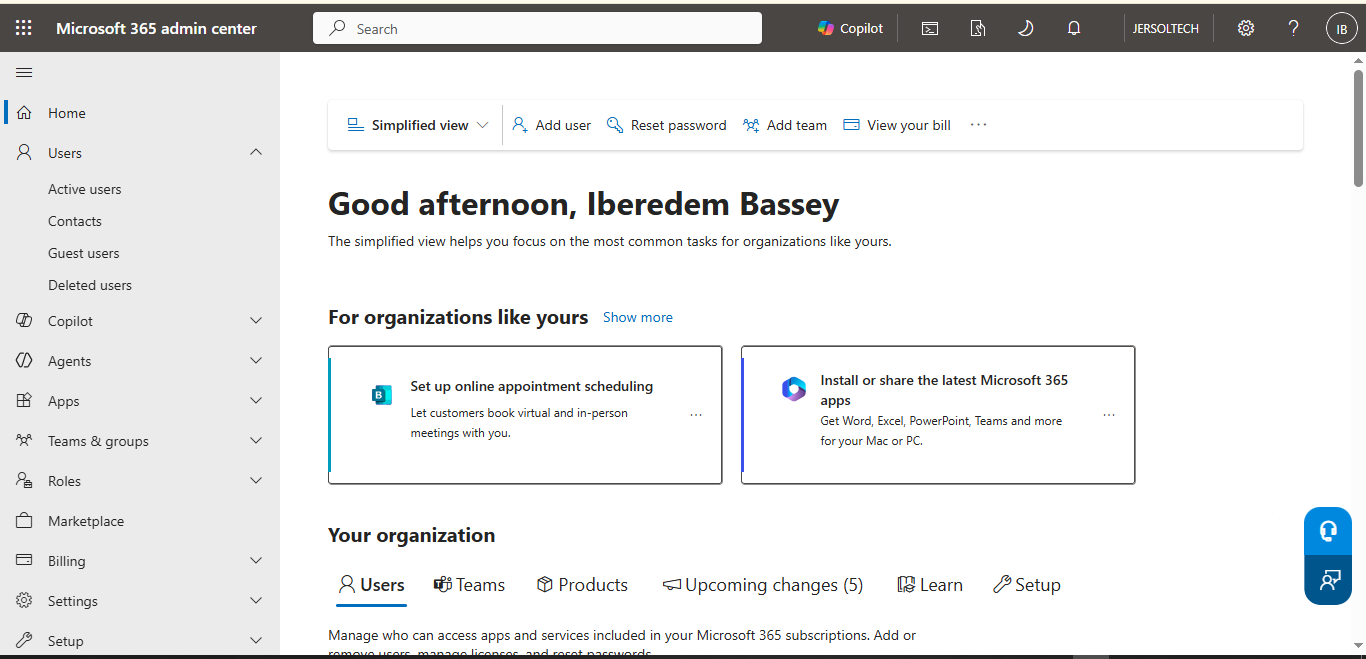
Open the Microsoft 365 Admin Center and sign in with an administrator account that has permission to create users.
The options displayed in the Admin Center may differ slightly depending on whether you’re using Simplified view or Dashboard view, but the user-creation process remains similar
Step 2: Select Add User
The location of the Add user option depends on the Admin Center view you’re using.
In Simplified View
Select Add user at the top of the Microsoft 365 Admin Center home page. You may also find the option under the Users section on the home page
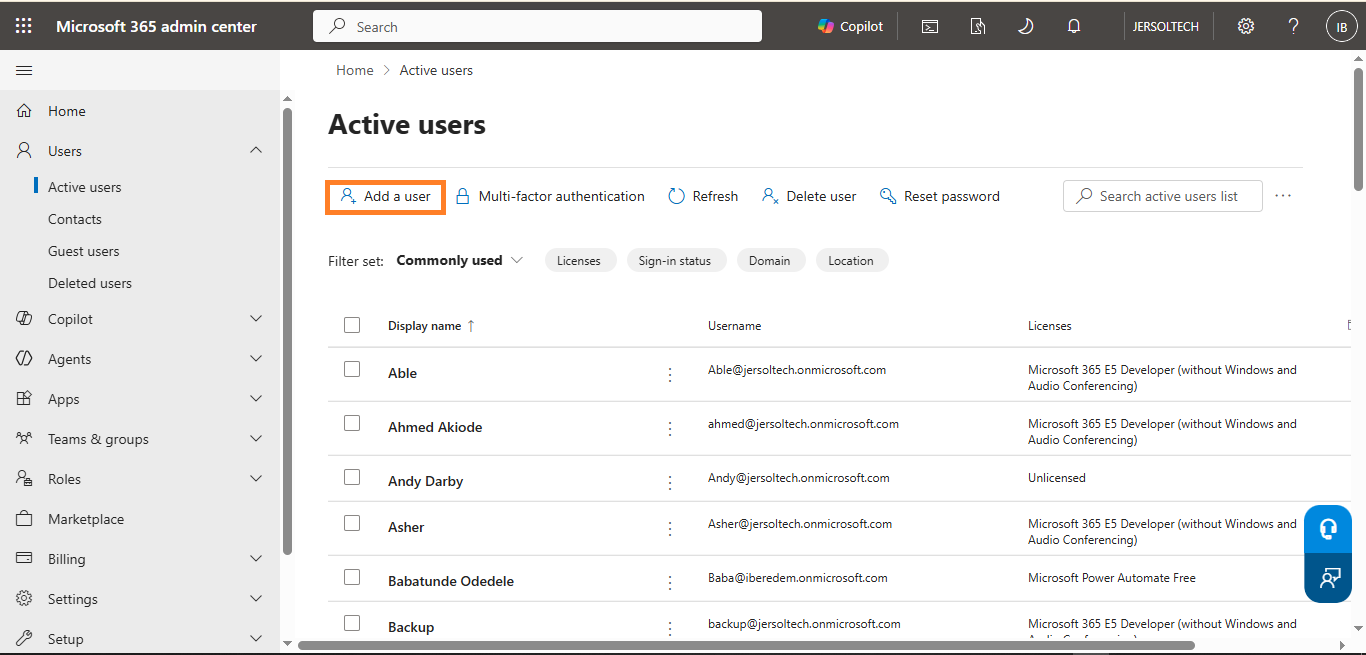
In Dashboard View
Follow these steps:
- Select Users from the navigation menu.
- Select Active users.
- Select Add a user.
Both views take you into the account-creation process.
Step 3: Enter the User’s Basic Information
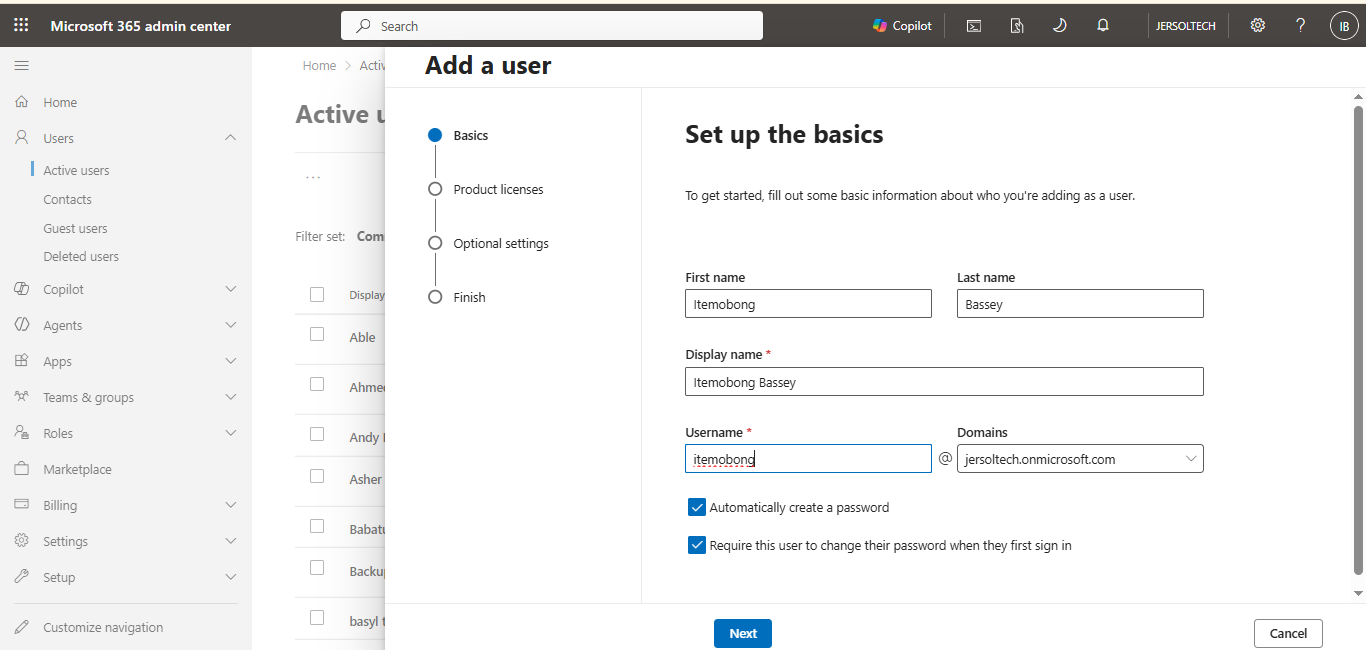
On the Set up the basics page, enter the user’s account information.
The available fields include:
- First name
- Last name
- Display name
- Username
- Domain
The display name is the name that other people in the organization will see when interacting with the user across Microsoft 365.
The username and selected domain form the user’s sign-in address. For example, if the username is john and the selected domain is yourcompany.com, the user’s sign-in address will be:
john@yourcompany.com
Review the information carefully, especially the username and domain, before proceeding.
When the information is correct, select Next.
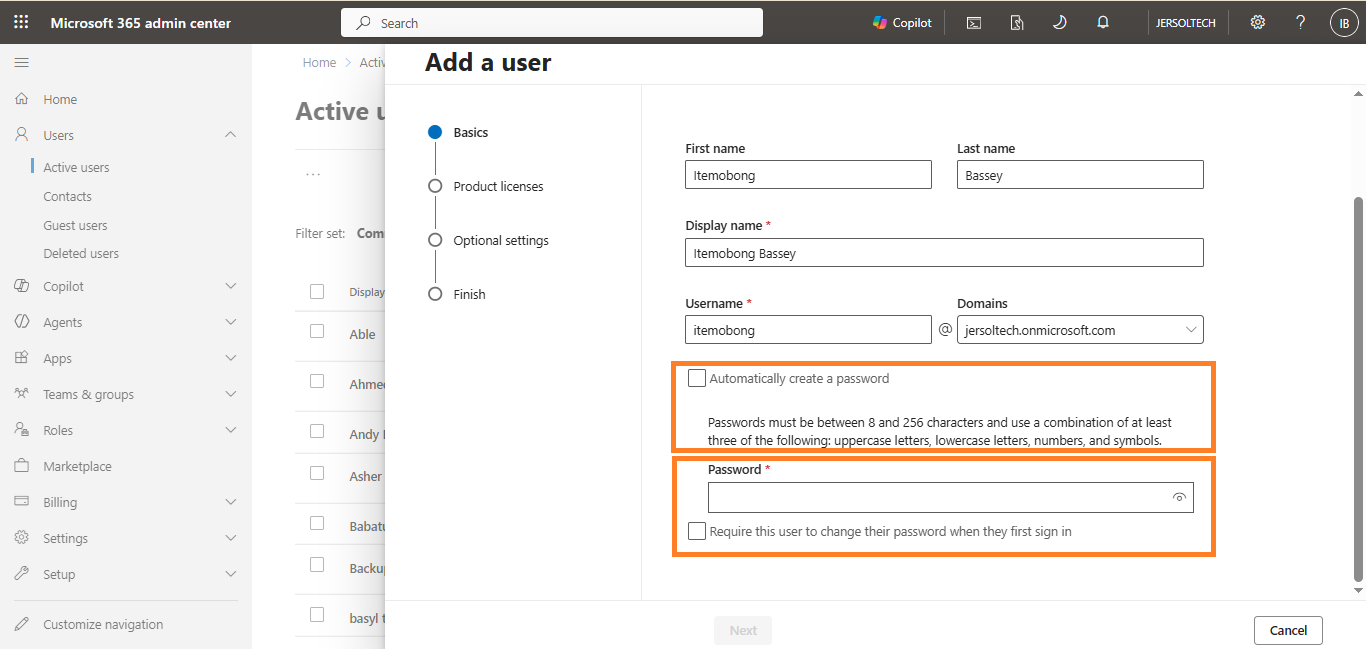
Step 4: Configure the User’s Password
During account creation, you can allow Microsoft 365 to generate a password automatically or create the initial password yourself.
By default, the option to generate a password automatically is selected. You can deselect it if you want to create a strong initial password manually. [learn.microsoft.com]
You can also require the user to change the password when signing in for the first time.
Requiring a password change helps ensure that the user replaces the temporary password with one known only to the account owner.
Step 5: Assign a Product License
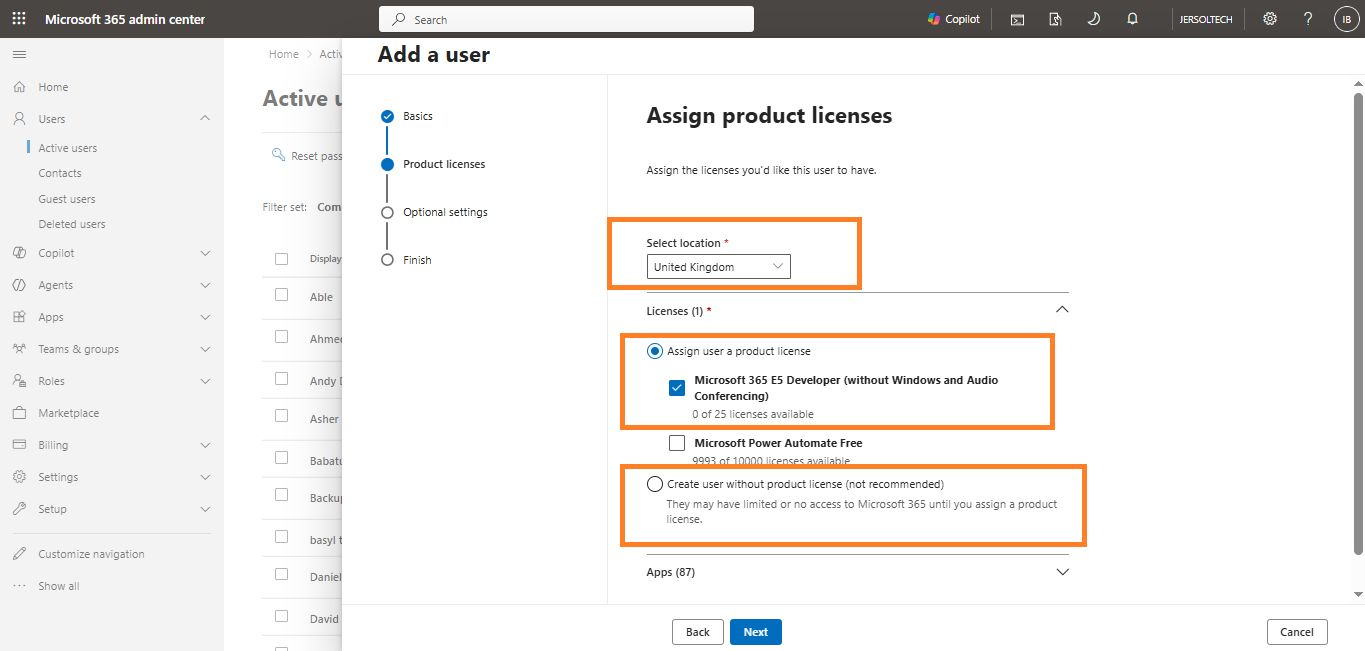
On the product-license page, select the user’s location and assign the appropriate Microsoft 365 license.
The user’s location is important because it helps determine which services can be made available to the account.
To assign a license:
- Select the user’s location.
- Locate the appropriate product license.
- Turn on the license for the user.
- Confirm that a license is available.
A product license gives the user access to the services included in your organization’s subscription. You can assign a license while creating the account, or create the user first and assign a license later. [learn.microsoft.com]
If no licenses are available, you can still create the account and purchase or assign an appropriate license afterward
Step 6: Choose the Apps and Services the User Can Access
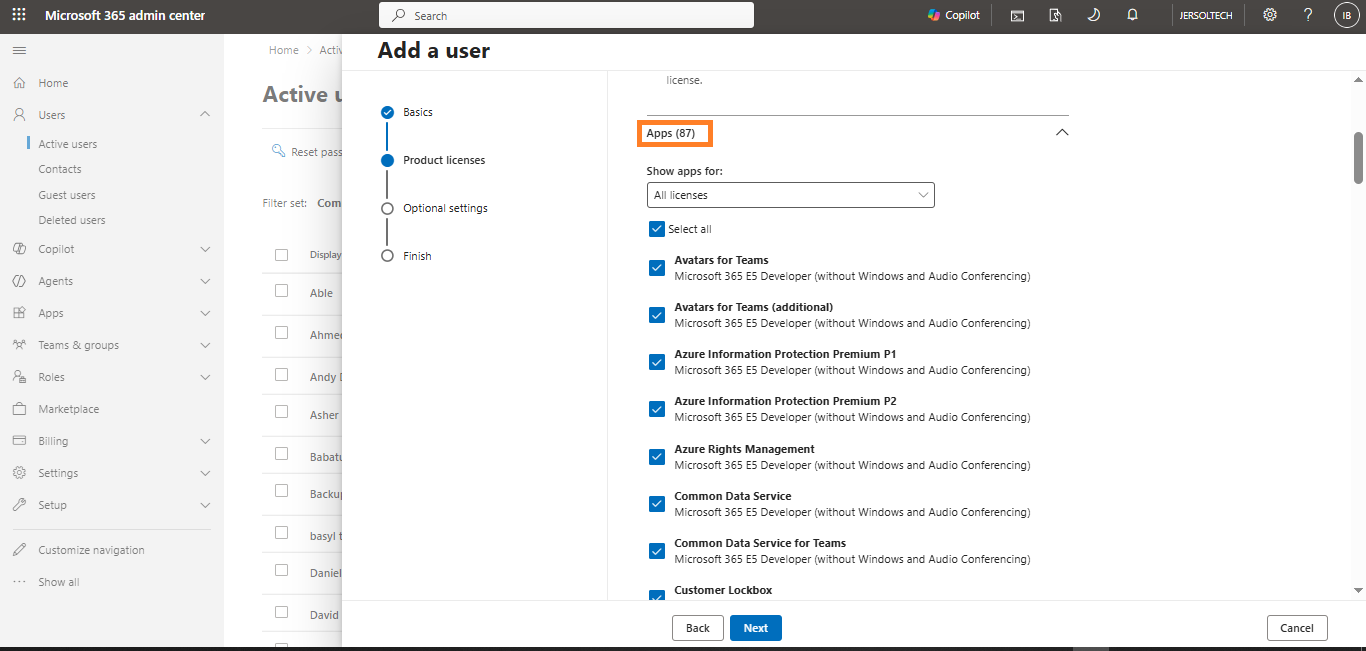
A Microsoft 365 product license may include several applications and services.
Depending on the subscription, these may include services such as:
- Exchange Online
- Microsoft Teams
- OneDrive
- SharePoint
- Microsoft 365 desktop or web applications
If you don’t want the user to access every service included with the license, expand the Apps section and turn individual applications or services on or off. [learn.microsoft.com]
In most cases, you can leave the default applications enabled unless your organization has a specific requirement to restrict certain services.
Step 7: Configure Optional Settings
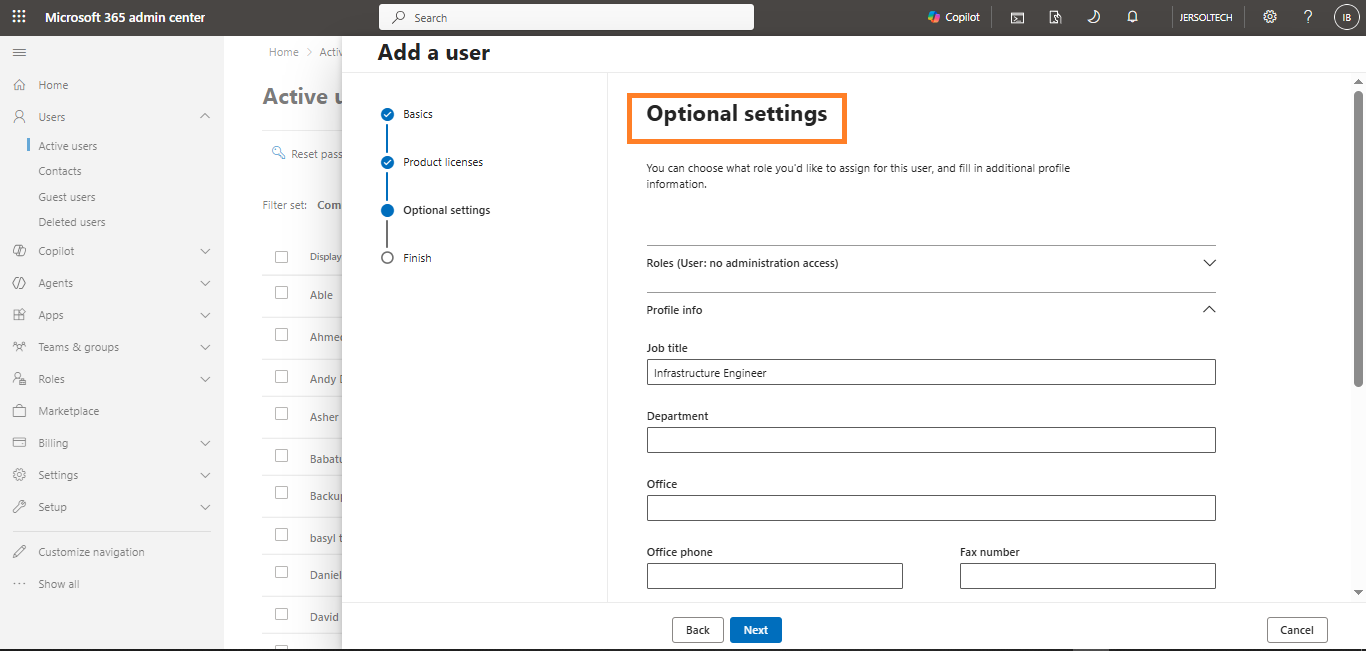
The optional settings section allows you to add more account information and assign administrator access where necessary.
Depending on the interface available in your Admin Center, the optional settings may include:
- Administrator roles
- Job title
- Department
- Office
- Business phone number
- Mobile phone number
You don’t need to complete every optional field to create a standard user account.
However, adding accurate organizational details can make the account easier to identify and manage later.
Step 8: Decide Whether the User Needs an Administrator Role
A newly created account is a standard user unless you explicitly assign an administrator role. Standard users don’t have administrator access to the Microsoft 365 admin centers. [learn.microsoft.com]
Only assign an administrator role when the user needs to perform administrative tasks.
If the user requires administrative access:
- Expand the Roles section.
- Select the appropriate administrator role.
- Avoid granting broader permissions than the user’s responsibilities require.
For example, someone responsible only for resetting passwords may need the Password Administrator role rather than the more powerful Global Administrator role.
Assigning the least-privileged role helps reduce unnecessary access to your organization’s settings, services, and data.
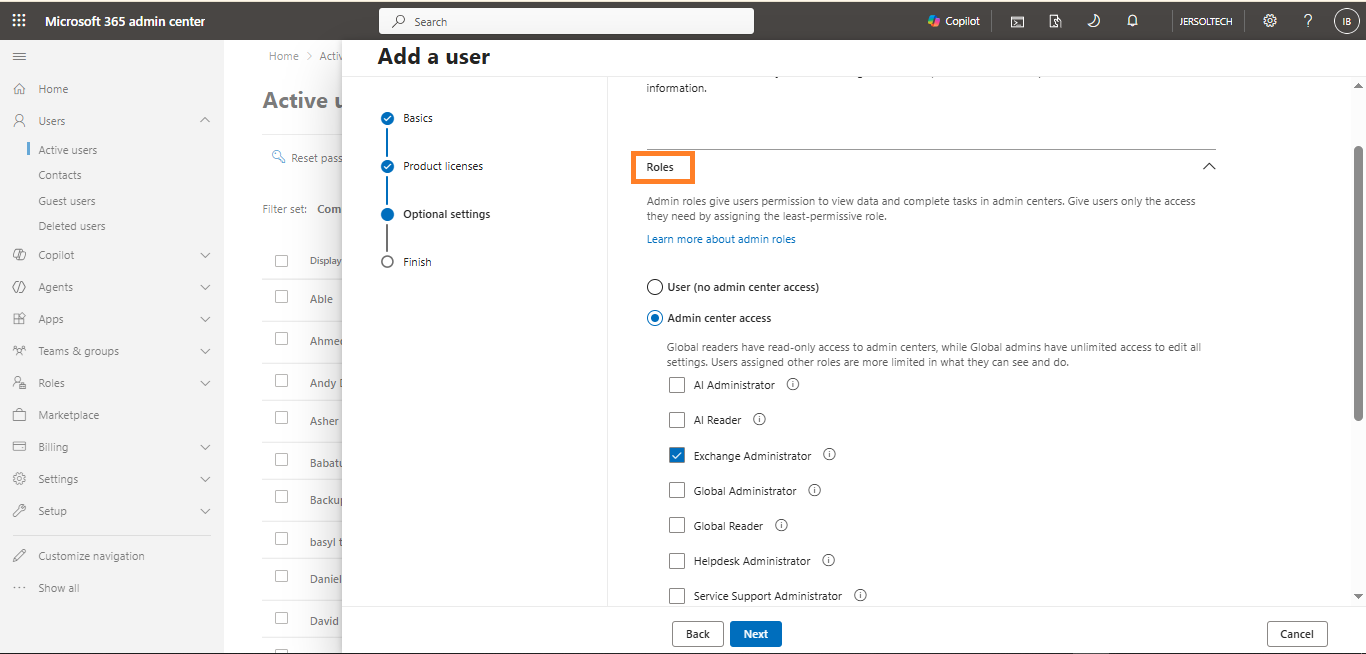
Security warning: Avoid assigning the Global Administrator role to every administrator. Use the role that provides only the permissions required to complete the person’s responsibilities.
Step 9: Review the User’s Information
Before creating the account, review all the information you’ve entered.
Check the following details:
- User’s name
- Display name
- Username and domain
- Password settings
- Location
- Product license
- Enabled applications
- Administrator role, if applicable
- Profile information
Pay particular attention to the username, selected license, and administrator permissions.
Correct any mistakes before continuing.
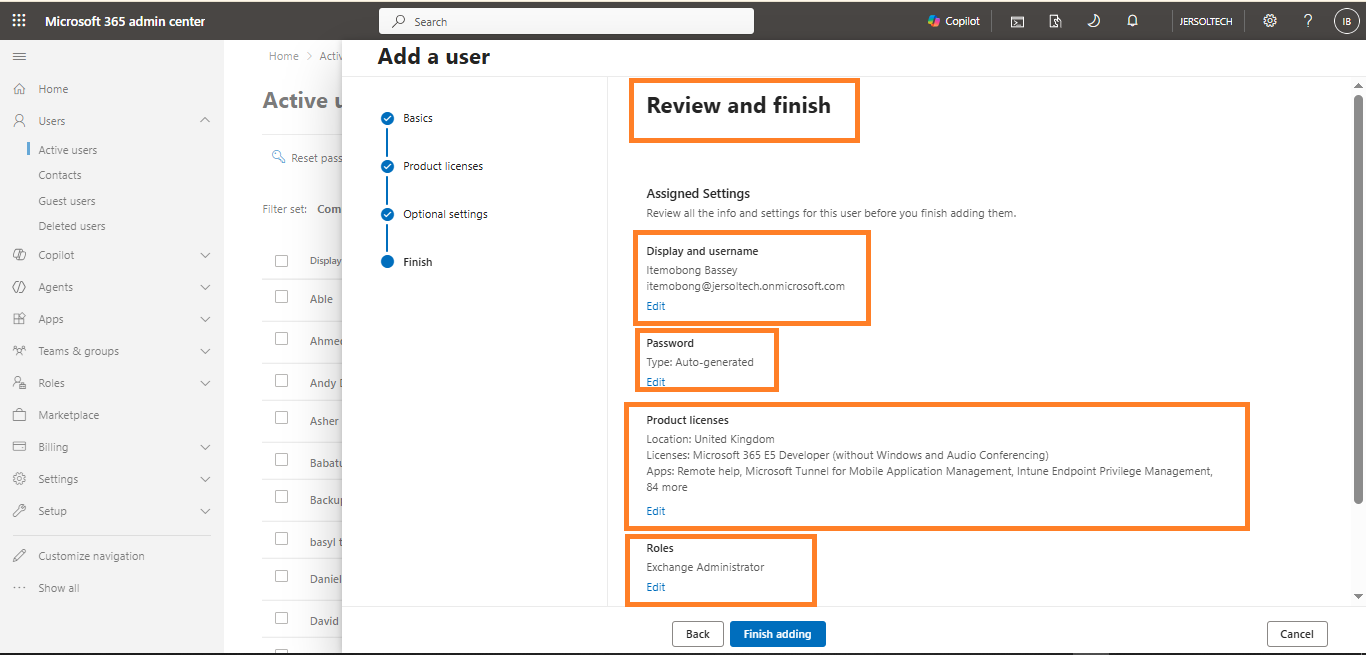
Step 10: Finish Creating the User
After confirming that the account information is correct, select Finish adding or the equivalent option displayed in your Admin Center.
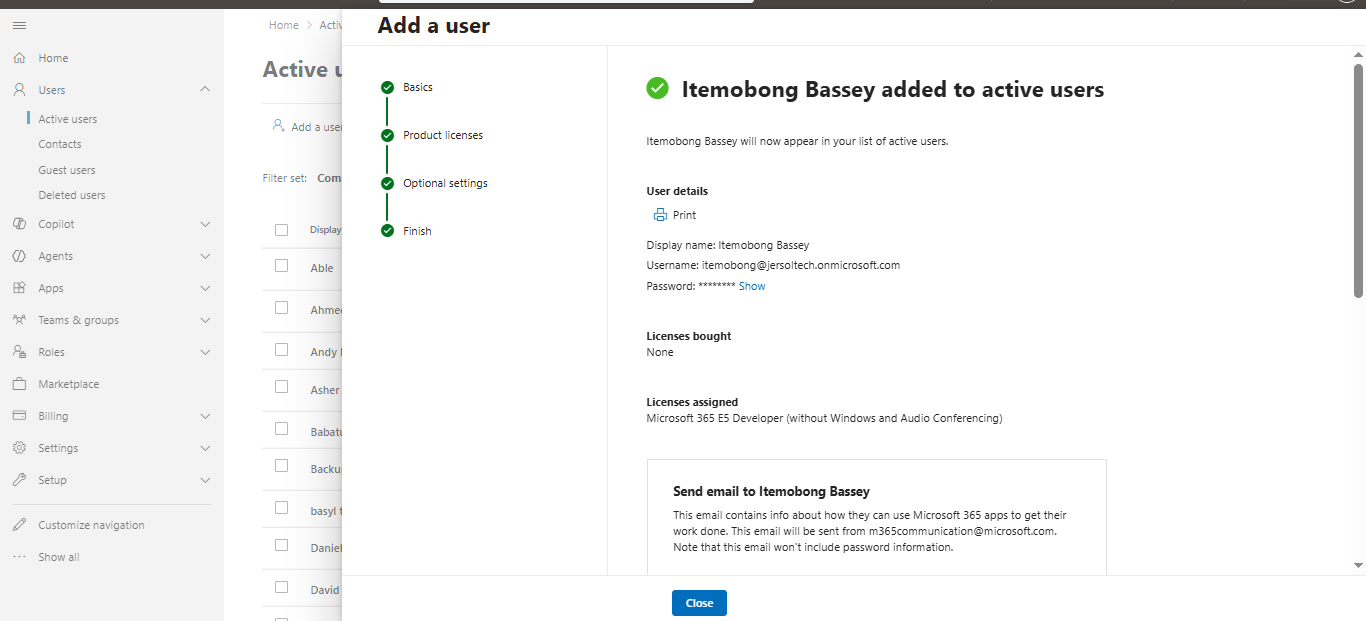
Microsoft 365 will create the account and display a confirmation containing the user’s sign-in information.
Copy the user details and provide them to the user through a secure communication method.
What to Do After Creating the User
Creating the account is only part of the onboarding process.
Complete the following checks before handing the account over to the user.
Confirm the License Assignment
Open the user’s account from Users > Active users and confirm that the intended license has been assigned.
If a license wasn’t available during account creation, assign one before the user attempts to access the required services.
Provide the Sign-In Details Securely
Send the user’s sign-in address and temporary password through an approved, secure method.
Don’t send or publish credentials in an unsecured public channel.
Ask the User to Sign In
Have the user sign in and complete the required password change.
This also helps confirm that:
- The account is active
- The username is correct
- The password works
- The assigned services are available
Verify Application Access
Confirm that the user can access the applications and services required for the person’s work.
If an application is unavailable, check the account’s product license and enabled apps.
Configure Additional Security Requirements
Complete any additional security enrollment required by your organization, such as registering an approved authentication method.
How to Find the New User After Creating the Account
To locate the newly created account:
- Open the Microsoft 365 Admin Center.
- Select Users.
- Select Active users.
- Search for the user’s name or username.
Select the account to view or update the user’s:
- Contact information
- Assigned licenses and applications
- Administrator roles
- Password settings
- Sign-in status
- Other available account properties
Important Note for Hybrid Organizations
This tutorial is most directly applicable to accounts created and managed in the Microsoft 365 Admin Center.
If your organization synchronizes accounts from an on-premises Active Directory environment, user accounts may need to be created and managed using your local identity-management tools. Synchronized account management depends on the organization’s identity model. [learn.microsoft.com]
Confirm how identities are managed within your organization before creating duplicate cloud accounts.
Best Practices for Creating Microsoft 365 Users
1. Use a Consistent Username Format
Choose a standard username format and apply it consistently across the organization.
For example, your organization might use:
- First name and last name
- First initial and last name
- First name and department identifier
A consistent naming convention makes accounts easier to identify and manage.
2. Verify the Selected Domain
Organizations with multiple domains should confirm that the correct domain is selected before creating an account.
The selected domain becomes part of the user’s sign-in address.
3. Assign Only the Services the User Needs
Review the applications included with the selected license.
Disable services only when your organization’s access policy requires it.
4. Use the Least-Privileged Administrator Role
Don’t grant administrator access unless it is necessary.
When administrative access is required, use the role that provides only the permissions needed to perform the user’s duties.
5. Protect Temporary Credentials
Send the username and temporary password securely. Never expose those credentials in public documentation, screenshots, or videos.
6. Review the Account Before Finishing
Check the username, domain, location, license, applications, and roles before creating the account.
This simple review can prevent sign-in problems and unnecessary permission assignments.
Frequently Asked Questions
What permissions do I need to create a Microsoft 365 user?
You need an appropriate administrator role. A User Administrator can add users, while a User Administrator or License Administrator can handle applicable license assignments. [learn.microsoft.com]
Where is the Add User button in Microsoft 365 Admin Center?
In Simplified view, select Add user from the top of the home page or the Users section. In Dashboard view, go to Users > Active users and select Add a user. [learn.microsoft.com]
Can I create a Microsoft 365 user without assigning a license?
Yes. You can create the account when no license is available and assign or purchase the required license later. However, the user won’t have access to services that require an assigned license until one is provided. [learn.microsoft.com]
Can I create a password for the new user?
Yes. You can allow Microsoft 365 to generate a password automatically or deselect that option and create a strong initial password yourself. [learn.microsoft.com]
Can I control which applications the user can access?
Yes. When assigning a product license, expand the Apps section and enable or disable the individual applications and services included with the license. [learn.microsoft.com]
Does a new user automatically become an administrator?
No. A new account is assigned the standard user role unless an administrator role is explicitly selected. [learn.microsoft.com]
Can I assign the license after creating the user?
Yes. Licenses can be assigned during account creation or later from the Active Users or Licenses areas of the Microsoft 365 Admin Center. [learn.microsoft.com]
Conclusion
Creating a user in the Microsoft 365 Admin Center involves more than entering a name and username.
You should also select the correct domain, configure the initial password, assign an appropriate product license, review the user’s access to applications, and decide whether the account requires an administrator role.
Before completing the process, review all account information carefully. Once the account has been created, provide the sign-in details securely and confirm that the user can access the required Microsoft 365 services.
If you prefer to see the process in action, watch my video tutorial, Creating a User inM365 Admin portal, where I demonstrate how to create a user in the Microsoft 365 Admin Center. [youtube.com]
If you found this tutorial helpful, subscribe to my blog and YouTube channel for more practical Microsoft 365 administration tutorials.