
IT Administration

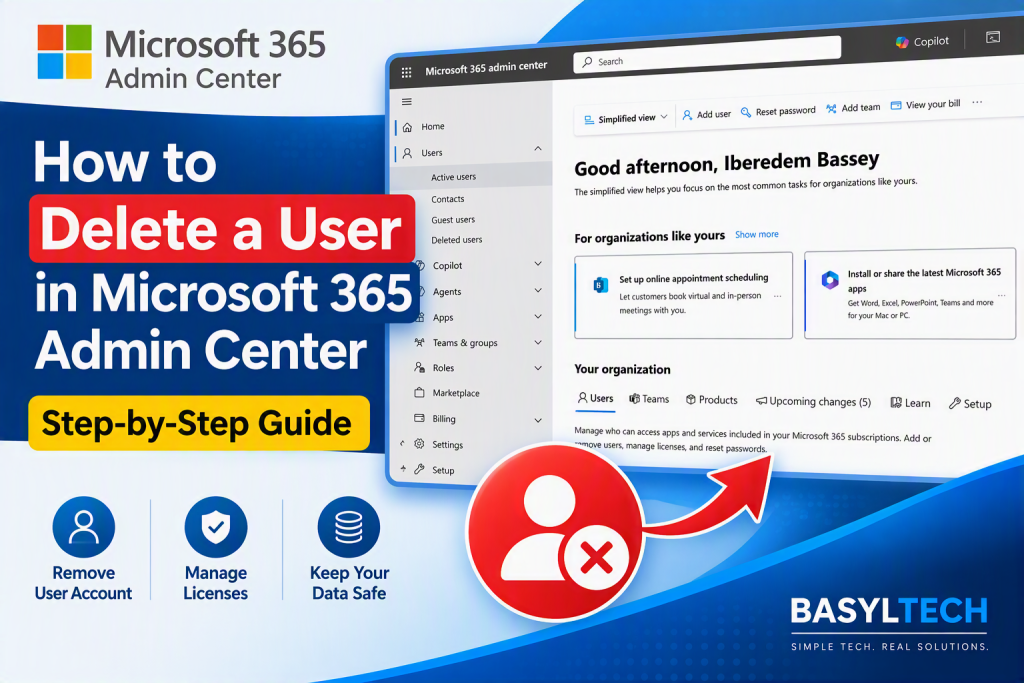
How to Delete a User in Microsoft 365 Admin Center

When an employee leaves your organization or a Microsoft 365 account is no longer required, deleting the account might seem straightforward. However, there are a few important things to consider before clicking Delete user. The user’s email, OneDrive files, licenses, and other organizational data may need to be preserved or reassigned first. In this guide, I’ll walk you through how to safely delete a user from the Microsoft 365 Admin Center and explain what you should check before completing the deletion.   What You Should Do Before Deleting a Microsoft 365 User Before deleting the account, determine what needs to happen to the user’s: Email OneDrive files Microsoft 365 license Microsoft specifically recommends considering what you want to do with the user’s email and OneDrive content and whether you want to keep the license or stop paying for it. [learn.microsoft.com] This is especially important when you’re removing an employee who has left your organization. For a full employee offboarding process, Microsoft recommends additional measures such as preventing the former employee from signing in, preserving their mailbox where necessary, handling organizational data on mobile devices, forwarding their email or converting the mailbox, providing access to OneDrive/Outlook data, and then addressing licensing and account deletion. How to Delete a User in Microsoft 365 Admin Center Let’s go through the process step by step. Step 1: Open the Microsoft 365 Admin Center Sign in to your organization’s Microsoft 365 Admin Center using an account with the appropriate administrative permissions   Step 2: Go to Active Users From the Microsoft 365 Admin Center: Select Users from the navigation menu. Select Active users. You should now see the active user accounts within your organization.   Step 3: Select the User You Want to Delete Find the user account that you want to remove. Select the user to open the account details. Before proceeding further, double-check that you’ve selected the correct account.   Step 4: Decide What to Do With the User’s Data and License This is one of the most important parts of the process. On the Delete user page, review the available options for the user’s license, email, and OneDrive data. Don’t rush through these options, particularly when you’re deleting the account of a former employee. Preserve Important OneDrive Files If the user stored organizational files in OneDrive, make sure you preserve any files the business still needs. Important files can be moved to another appropriate location or access can be given to another user. Take care of important OneDrive data as part of the offboarding process rather than assuming that deleting the user immediately deletes everything associated with the account. Preserve Important Email If you need to retain the user’s email, deal with the mailbox before completing the account deletion. If the account has already been deleted and is still within the recovery period, you may be able to restore the account first and then handle the email data appropriately. Consider the User’s License Think about whether the license needs to be reassigned or removed. If the license is no longer required by this user, it may be available to assign to another user. Also remember that removing a license assignment from a user and reducing the total number of licenses you’re paying for are not necessarily the same thing. If your goal is to reduce subscription costs, review your subscription and billing settings as well.   Step 5: Delete the User Once you’ve reviewed the account and made the appropriate decisions about the user’s data, complete the deletion by selecting Delete user.   What Happens After You Delete a Microsoft 365 User? Deleting the account does not necessarily mean everything disappears instantly. A deleted Microsoft 365 user account can generally be restored for 30 days before the user’s data is permanently deleted. [learn.microsoft.com] This recovery window can be helpful if an account is deleted accidentally. However, you shouldn’t treat that recovery period as a replacement for properly backing up or transferring important organizational data beforehand.   What Happens to the User’s OneDrive Files? If the user has important organizational files stored in OneDrive, move or preserve the files you want to keep. The default OneDrive retention period for a deleted user’s OneDrive is 30 days. After that retention period, the deleted user’s OneDrive is moved to the site collection recycle bin, where it is retained for 93 days. [learn.microsoft.com] Because OneDrive retention settings can be configured, check the retention settings that apply to your organization instead of relying only on the default. Important: Deleting a User Is Not the Same as Offboarding an Employee If the account belongs to an employee leaving the company, simply deleting the user should not necessarily be your entire offboarding procedure. A proper offboarding process may include: Preventing the former employee from signing in Saving mailbox content when required Handling organizational data on the employee’s mobile device where applicable Forwarding email or converting the mailbox to a shared mailbox when appropriate Giving another employee access to relevant OneDrive and Outlook data Handling the former employee’s Microsoft 365 license Deleting the former employee’s user account [learn.microsoft.com] Following an established offboarding procedure can therefore involve considerably more than simply deleting the account.   Important Note About Shared Mailboxes and Email Forwarding Be particularly careful if you’ve already converted the user’s mailbox to a shared mailbox or configured email forwarding. If you’ve converted the account to a shared mailbox or configured email forwarding, don’t simply delete the account. These functions can still depend on the account, and deleting it may interfere with the setup. [learn.microsoft.com] This is an important distinction if the departing employee’s email address needs to remain active for customers, suppliers, or other contacts. What If Your Organization Uses On-Premises Active Directory? There’s an important exception for organizations with synchronized identities. If your organization synchronizes user accounts to Microsoft 365 from an on-premises Active Directory environment, you need to manage deletion and restoration of those synchronized accounts from the local Active Directory environment rather than directly from

How to Delete a User in Microsoft 365 Admin Center Read More »
How to Create a User in Microsoft 365 Admin Center: Step-by-Step Guide

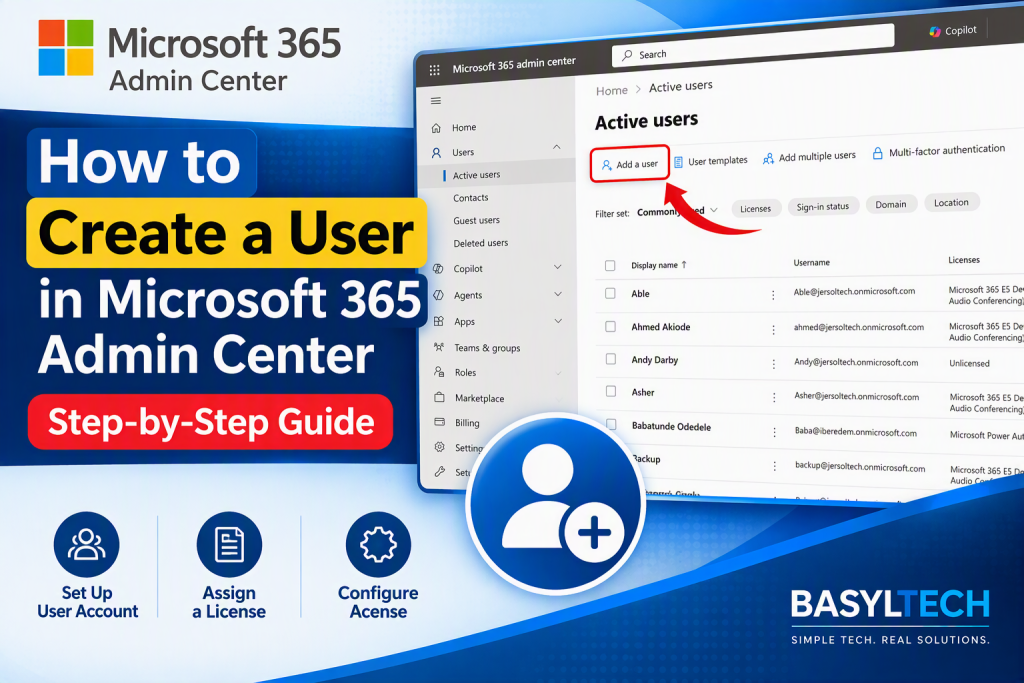
How to Create a User in Microsoft 365 Admin Center: Step-by-Step Guide Every person in your organization needs an account before they can sign in and use Microsoft 365 services. Creating a user account through the Microsoft 365 Admin Center allows you to set up the person’s sign-in details, assign a product license, manage available applications, and configure optional administrator permissions. In this guide, I’ll show you how to create a user in the Microsoft 365 Admin Center step by step. Important: You need an appropriate administrative role, such as User Administrator or License Administrator, to add users and assign licenses. What You Need Before Creating the User Before you begin, make sure you have the following information: The user’s first and last name The username the person will use to sign in The domain you want to use for the account The user’s location The Microsoft 365 license the user requires The applications and services the user needs Any administrator role the user may require You should also confirm that an appropriate product license is available. Although you can create an account without an available license, the user may not be able to access the Microsoft 365 applications and services required for their work until a license is assigned. Step 1: Sign In to the Microsoft 365 Admin Center Open the Microsoft 365 Admin Center and sign in with an administrator account that has permission to create users. The options displayed in the Admin Center may differ slightly depending on whether you’re using Simplified view or Dashboard view, but the user-creation process remains similar   Step 2: Select Add User The location of the Add user option depends on the Admin Center view you’re using. In Simplified View Select Add user at the top of the Microsoft 365 Admin Center home page. You may also find the option under the Users section on the home page   In Dashboard View Follow these steps: Select Users from the navigation menu. Select Active users. Select Add a user. Both views take you into the account-creation process.   Step 3: Enter the User’s Basic Information On the Set up the basics page, enter the user’s account information. The available fields include: First name Last name Display name Username Domain The display name is the name that other people in the organization will see when interacting with the user across Microsoft 365. The username and selected domain form the user’s sign-in address. For example, if the username is john and the selected domain is yourcompany.com, the user’s sign-in address will be: john@yourcompany.com Review the information carefully, especially the username and domain, before proceeding. When the information is correct, select Next.   Step 4: Configure the User’s Password During account creation, you can allow Microsoft 365 to generate a password automatically or create the initial password yourself. By default, the option to generate a password automatically is selected. You can deselect it if you want to create a strong initial password manually. [learn.microsoft.com] You can also require the user to change the password when signing in for the first time. Requiring a password change helps ensure that the user replaces the temporary password with one known only to the account owner.   Step 5: Assign a Product License On the product-license page, select the user’s location and assign the appropriate Microsoft 365 license. The user’s location is important because it helps determine which services can be made available to the account. To assign a license: Select the user’s location. Locate the appropriate product license. Turn on the license for the user. Confirm that a license is available. A product license gives the user access to the services included in your organization’s subscription. You can assign a license while creating the account, or create the user first and assign a license later. [learn.microsoft.com] If no licenses are available, you can still create the account and purchase or assign an appropriate license afterward   Step 6: Choose the Apps and Services the User Can Access A Microsoft 365 product license may include several applications and services. Depending on the subscription, these may include services such as: Exchange Online Microsoft Teams OneDrive SharePoint Microsoft 365 desktop or web applications If you don’t want the user to access every service included with the license, expand the Apps section and turn individual applications or services on or off. [learn.microsoft.com] In most cases, you can leave the default applications enabled unless your organization has a specific requirement to restrict certain services. Step 7: Configure Optional Settings The optional settings section allows you to add more account information and assign administrator access where necessary. Depending on the interface available in your Admin Center, the optional settings may include: Administrator roles Job title Department Office Business phone number Mobile phone number You don’t need to complete every optional field to create a standard user account. However, adding accurate organizational details can make the account easier to identify and manage later. Step 8: Decide Whether the User Needs an Administrator Role A newly created account is a standard user unless you explicitly assign an administrator role. Standard users don’t have administrator access to the Microsoft 365 admin centers. [learn.microsoft.com] Only assign an administrator role when the user needs to perform administrative tasks. If the user requires administrative access: Expand the Roles section. Select the appropriate administrator role. Avoid granting broader permissions than the user’s responsibilities require. For example, someone responsible only for resetting passwords may need the Password Administrator role rather than the more powerful Global Administrator role. Assigning the least-privileged role helps reduce unnecessary access to your organization’s settings, services, and data. Security warning: Avoid assigning the Global Administrator role to every administrator. Use the role that provides only the permissions required to complete the person’s responsibilities.   Step 9: Review the User’s Information Before creating the account, review all the information you’ve entered. Check the following details: User’s name Display name Username and domain Password settings Location Product license Enabled

How to Create a User in Microsoft 365 Admin Center: Step-by-Step Guide Read More »

We use cookies to personalise content and ads, to provide social media features and to analyse our traffic. We also share information about your use of our site with our social media, advertising and analytics partners. View more
Cookies settings
Accept
Decline
Privacy & Cookie policy
Privacy & Cookies policy
Cookie name Active

Who we are

Suggested text: Our website address is: https://basyltech.com.

Comments

Suggested text: When visitors leave comments on the site we collect the data shown in the comments form, and also the visitor’s IP address and browser user agent string to help spam detection. An anonymised string created from your email address (also called a hash) may be provided to the Gravatar service to see if you are using it. The Gravatar service Privacy Policy is available here: https://automattic.com/privacy/. After approval of your comment, your profile picture is visible to the public in the context of your comment.

Media

Suggested text: If you upload images to the website, you should avoid uploading images with embedded location data (EXIF GPS) included. Visitors to the website can download and extract any location data from images on the website.

Cookies

Suggested text: If you leave a comment on our site you may opt in to saving your name, email address and website in cookies. These are for your convenience so that you do not have to fill in your details again when you leave another comment. These cookies will last for one year. If you visit our login page, we will set a temporary cookie to determine if your browser accepts cookies. This cookie contains no personal data and is discarded when you close your browser. When you log in, we will also set up several cookies to save your login information and your screen display choices. Login cookies last for two days, and screen options cookies last for a year. If you select "Remember Me", your login will persist for two weeks. If you log out of your account, the login cookies will be removed. If you edit or publish an article, an additional cookie will be saved in your browser. This cookie includes no personal data and simply indicates the post ID of the article you just edited. It expires after 1 day.

Embedded content from other websites

Suggested text: Articles on this site may include embedded content (e.g. videos, images, articles, etc.). Embedded content from other websites behaves in the exact same way as if the visitor has visited the other website. These websites may collect data about you, use cookies, embed additional third-party tracking, and monitor your interaction with that embedded content, including tracking your interaction with the embedded content if you have an account and are logged in to that website.

Who we share your data with

Suggested text: If you request a password reset, your IP address will be included in the reset email.

How long we retain your data

Suggested text: If you leave a comment, the comment and its metadata are retained indefinitely. This is so we can recognise and approve any follow-up comments automatically instead of holding them in a moderation queue. For users that register on our website (if any), we also store the personal information they provide in their user profile. All users can see, edit, or delete their personal information at any time (except they cannot change their username). Website administrators can also see and edit that information.

What rights you have over your data

Suggested text: If you have an account on this site, or have left comments, you can request to receive an exported file of the personal data we hold about you, including any data you have provided to us. You can also request that we erase any personal data we hold about you. This does not include any data we are obliged to keep for administrative, legal, or security purposes.

Where your data is sent

Suggested text: Visitor comments may be checked through an automated spam detection service.
Save settings
Scroll to Top
Verified by MonsterInsights